Download Monitor CSV Importer
Experience seamless download management with our CSV Importer! Easily import and categorize your downloads in Download Monitor with just a few simple steps. Start uploading your CSV file now to streamline your download process and save time.
CSV Importer Plugin
Streamline your Download Monitor experience with the CSV Importer Plugin. This user-friendly importer simplifies the process of importing downloads along with their categories, tags, and archives into Download Monitor, saving you time and effort.
Easy Installation
- Simply unzip and add the plugin folder to your /wp-content/plugins/ directory
- Activate the extension through the ‘Plugins’ menu in WordPress
For more detailed instructions on installing and managing plugins, click here
Preparing Your CSV File
Prior to initiating the import process, you’ll need to create a CSV file containing the downloads and versions you wish to import. Use our sample CSV file, which includes default headers, a sample download row, and a sample version row. Make sure to designate the type in the CSV file as either a download or a version row.
Adding Multiple Versions
You can include multiple versions in a single file by adding rows with version types. It’s important to associate the versions with the correct downloads they correspond to. For example, Version A and Version B would be linked to Download 1, while Version C would be linked to Download 2.
How to Use
Once the plugin is installed, go to Tools > Import and click on the Download Monitor CSV Importer link.
Choose the CSV Importer from the list of available importers
Uploading the CSV File
During the upload process, select your CSV file and specify the delimiter used. By default, CSV files use a comma as the delimiter, but if you’ve used Numbers on a Mac and exported to CSV, the delimiter is likely a semicolon.
Select your CSV file and input the appropriate delimiter
Data Mapping
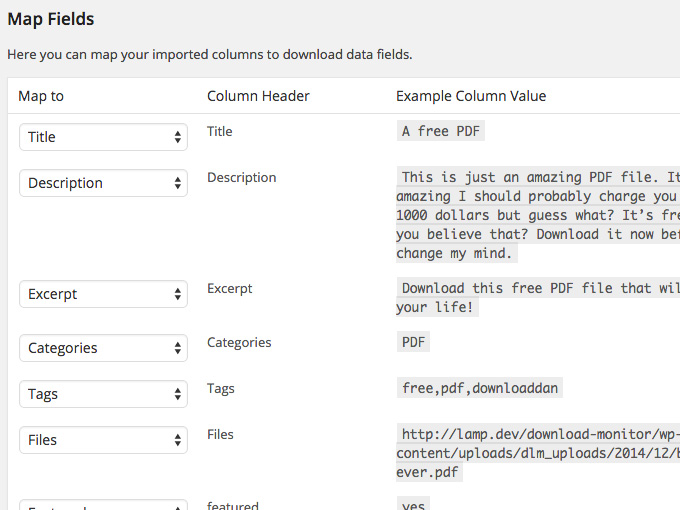
In the next step, you’ll map the columns in the CSV file to match download data fields. The plugin will attempt to automatically map columns to fields. Note that download and version rows have different fields, so make sure to map them correctly. Once you’ve mapped all the columns, click the Start Import button.
Map the CSV columns to the corresponding Download fields
After the import is complete, you’ll be directed to a page showing the number of downloads that were successfully imported.
Troubleshooting
Having Trouble Uploading Your CSV File on Multisite?
If you’re using WordPress Multisite (Network), ensure that the CSV file upload feature is enabled in the network-wide settings to successfully import your files.
What "nulled" means, and why Download Monitor CSV Importer here is the right choice
A "nulled" plugin or theme is a premium product distributed without the developer's licence key. WordPress itself is released under the GPL, and the GPL grants anyone who receives the software the right to redistribute it — which is what makes a catalogue like this lawful in the first place.
What the GPL does not carry with it is the developer's own support, automatic updates from their servers, or any warranty. That is the real difference, and it is worth knowing before you install anything: you get the complete, working product, and you take responsibility for keeping it updated.
Every package here is the full release, unmodified, and every download is served through WorldPressIT rather than from this site. If you rely on a product commercially and need the developer behind it when something breaks, buy it from them directly — that is what their price pays for.